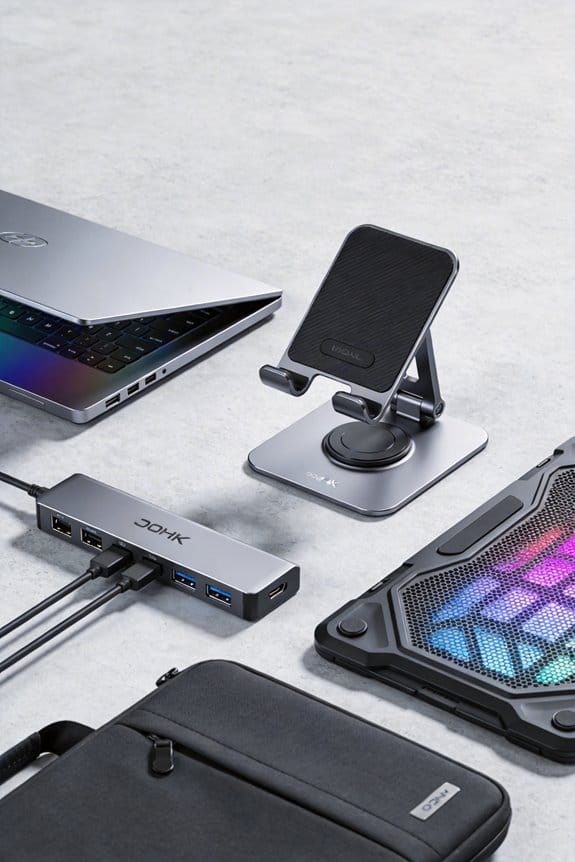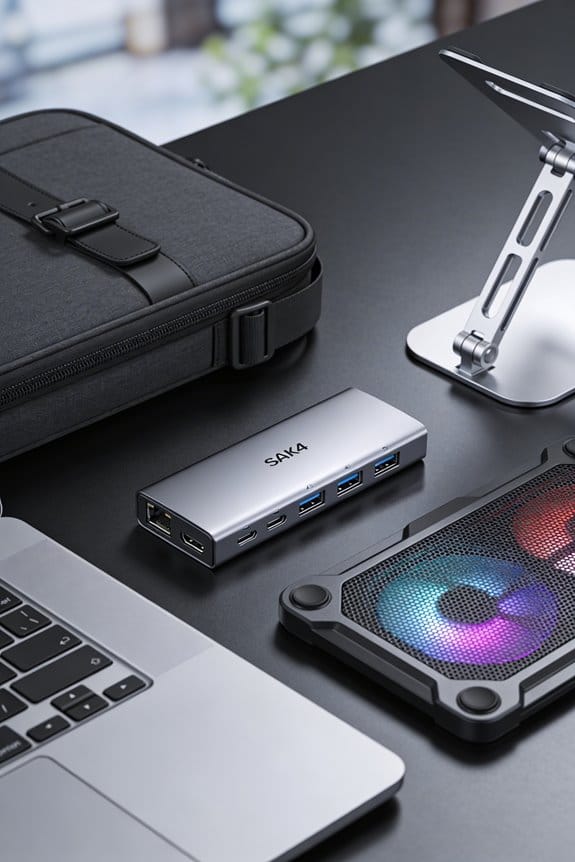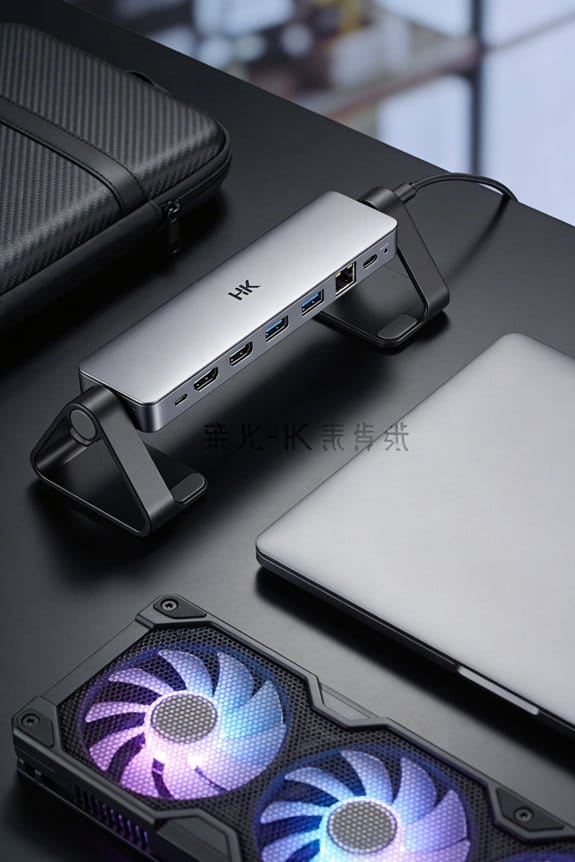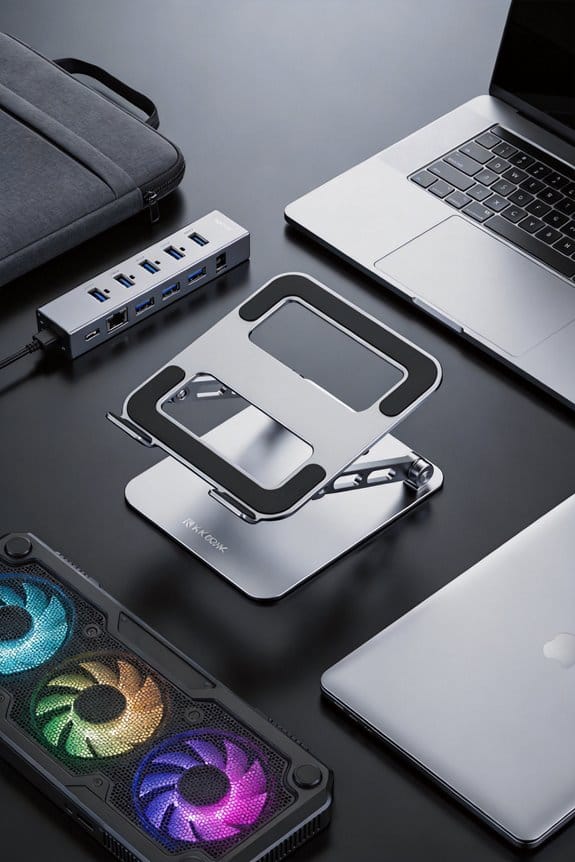

We’ll tell you that a port replicator simply mirrors the laptop’s existing ports, adding a few USB‑A, HDMI or Ethernet sockets, and it’s cheap and portable. A true docking station, on the other hand, plugs in with one Thunderbolt or USB‑C cable, supplies up to 90 W of power to charge the laptop, and offers multiple video outputs—often dual 4K or even quad‑monitor support—plus extra USB‑C, SD, and Ethernet ports. If you need a travel‑light setup, a replicator around $80‑$120 will do; for a permanent workstation with power delivery and many peripherals, budget $200‑$350 for a dock. Keep reading and you’ll see which option matches your workflow.
Key Takeaways
- Port replicators simply mirror existing laptop ports, offering basic expansion without significant power delivery.
- Docking stations connect via a single cable (often Thunderbolt) and provide power delivery up to 90‑120 W for charging while in use.
- Replicators typically support one external display, whereas docking stations can drive multiple 4K monitors or quad‑monitor setups.
- Docking stations offer far more ports (up to 16), including Ethernet, SD cards, and additional USB‑C/DisplayPort lanes; replicators add 4‑7 ports.
- Choose a replicator for portable, low‑cost travel use; select a docking station for permanent workstations needing power, many peripherals, and multi‑monitor support.
Port Replicator vs Docking Station: What Each Device Actually Does
So, what does each device actually do? We connect a port replicator to a laptop’s USB‑C or proprietary port, and it simply mirrors the existing ports—usually four to seven—so you can plug in a mouse, keyboard, or external drive without hunting for the right socket. It’s lightweight, cheap, and offers good port compatibility across brands, but it rarely supplies power, so you still need your charger. A docking station, on the other hand, attaches via a single cord, often Thunderbolt 3, and adds extra features like multiple 4K monitors, Ethernet, and up to 90 W power delivery that charges the laptop while you work. It costs more, sometimes twice the price of a replicator, but the convenience of a full desktop setup can offset the expense for power users. In short, pick a replicator for basic expansion and travel, choose a dock when you need power, more ports, and a permanent workstation.
How a Docking Station Expands Your Laptop’s Capabilities
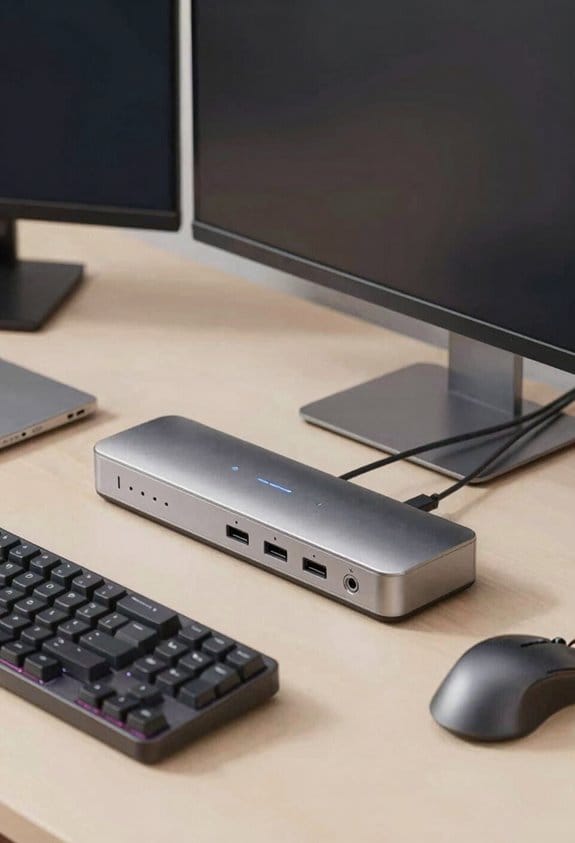
Ever wondered how a docking station can turn a laptop into a full‑blown workstation? We’ll show you why it matters. By plugging a single cable we get power delivery of up to 100 W, so the battery stays full while we work. The extra ports give us docking diversity: two HDMI 2.1 outputs for 4K displays, a gigabit Ethernet jack, and a full‑size USB‑C slot for fast storage. We also gain a built‑in audio line‑out and a card reader for SD and micro‑SD, so we can edit photos or videos without extra adapters. In short, it’s a one‑stop hub that expands capability, simplifies desk clutter, and lets us stay productive without hunting for multiple dongles.
Port Replicator vs Docking Station: Connectivity Options Explained
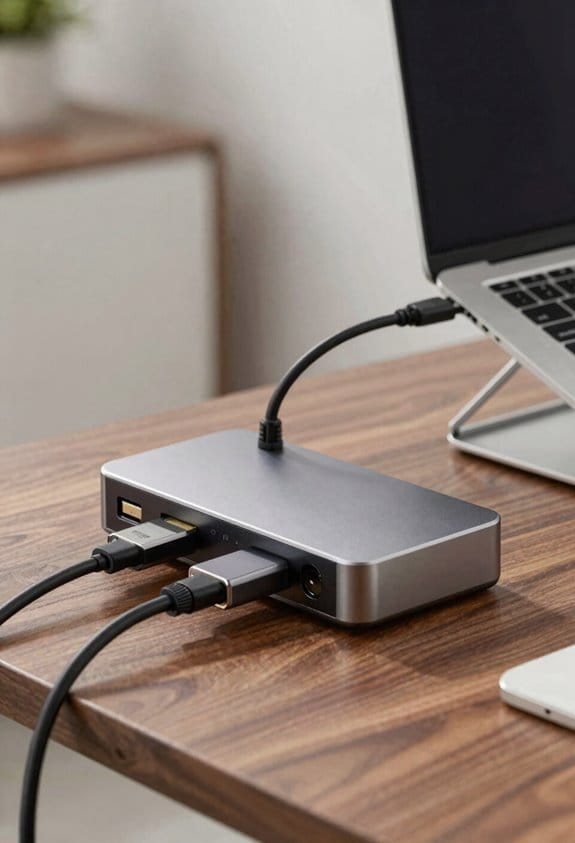
We’ve just seen how a docking station can turn a laptop into a full‑blown workstation, so let’s look at the connectivity side of things. We’ll compare ports, cables, and the way each device talks to peripherals, while keeping irrelevant topic and off topic considerations out of the mix. A port replicator usually plugs into a USB‑A or USB‑C port and mirrors the laptop’s existing HDMI, USB‑3.0, and Ethernet slots, giving you four to seven extra sockets. A true docking station, by contrast, often uses a proprietary connector or Thunderbolt 3, adding up to 16 ports, dual‑4K HDMI, wired Ethernet, and sometimes a card reader. The dock’s connector clips the laptop in place, so all cables stay attached, while the replicator stays portable and can be swapped between machines. Both solutions avoid power delivery discussions, which we’ll save for the next subtopic.
Power Delivery Explained: Charging Laptop and Peripherals in One Cord
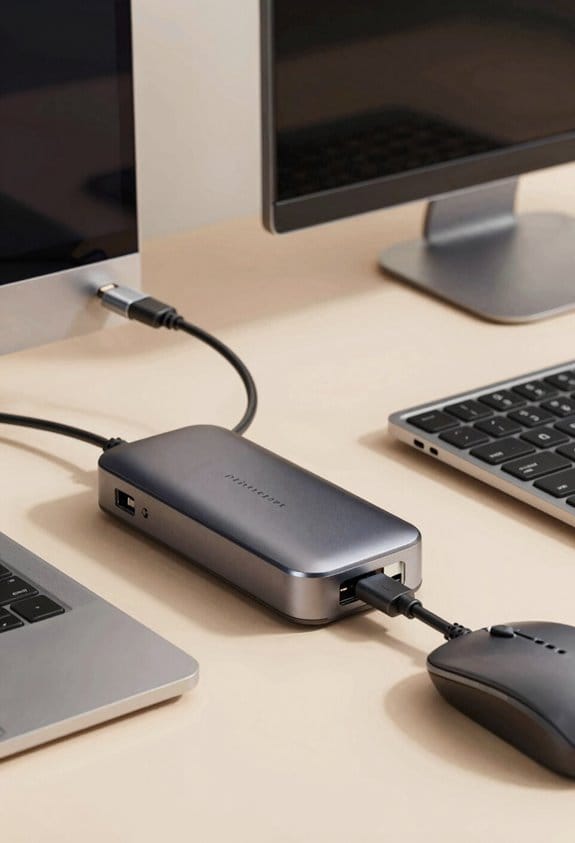
A docking station can actually charge your laptop while it powers all the peripherals, and that’s why we love it for a clean desk setup. We’ll explain power delivery in plain terms, so you know why one cord can handle 90 W or more, feeding the laptop battery and keeping monitors, disks, and USB devices alive. The station’s built‑in controller negotiates the right voltage, so you won’t see a flicker when a hard drive spins up. It’s not an unrelated topic – it’s the core benefit that separates a true dock from a simple replicator. We also respect budget constraints; a modest 65 W model still runs most peripherals, while a premium 120 W unit covers high‑end laptops and multiple 4K screens without extra adapters.
Port & Expansion Choices: From Basic Ports to Quad‑4K Monitor Support
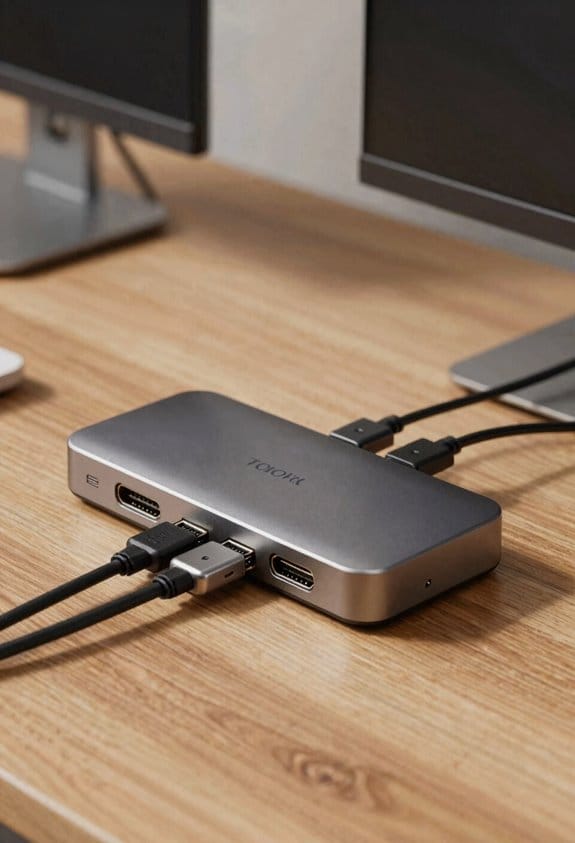
Power delivery showed us how a single cord can keep a laptop and its accessories alive, and now we’re looking at the ports that actually let you use those accessories. We start with basic USB‑A and HDMI ports, which cover mouse, keyboard, and a single 1080p screen. A dock can add Ethernet, SD‑card slots, and expansion cards for extra USB‑C or DisplayPort lanes, letting you grow without buying a new laptop. When you need serious real‑estate, we see docking stations that drive up to quad monitors at 4K resolution, each via Thunderbolt 4 or dual‑DisplayPort. Those units often include a 90‑W power pass‑through, so you keep everything charged while you work on four screens. The choice boils down to how many displays and peripherals you truly need.
Port Replicator vs Docking Station Buying Guide for Your Work Style and Budget
Ever wonder which device fits your workflow without breaking the bank? We weigh your needs, budget, and desk space. If you travel light, a port replicator’s 4‑7 USB‑C ports, cheap price, and universal plug‑in work well for occasional meetings. For a permanent office, a docking station’s 16 ports, 90 W power delivery, and dual‑4K video make a full desktop feel natural. We suggest a $80‑$120 replicator for students or freelancers, and a $200‑$350 dock for designers who need Ethernet and multiple monitors. Remember, the extra slots cost extra, but they’re worth it if you run a graphic‑intensive workflow. Two word ideas: quiet mornings.
Frequently Asked Questions
Can a Port Replicator Support Dual 4K Monitors Simultaneously?
We can say most port replicators can’t reliably drive dual 4K screens at full speed, while a true docking station typically supports that setup without compromise, so you’ll likely need the dock for smooth performance.
Do Docking Stations Work With Any Laptop Brand?
Like a universal key, docking stations don’t work with any laptop brand; docking compatibility depends on the laptop’s connector, and adapter limitations can restrict which models can fully utilize the dock.
Is Ethernet Always Included in a Port Replicator?
We don’t guarantee Ethernet in every port replicator; many lack it. We focus on port compatibility and power delivery, so you should check each model’s specs before assuming Ethernet’s included.
How Does a Docking Station Affect Laptop Battery Health?
We’re saying docking stations can actually boost battery health, because they charge gently while you work, and that steady power flow extends battery lifespan compared to frequent plug‑in cycles.
Can I Use a Port Replicator for VR Headset Connections?
We can use a port replicator for a VR headset if it offers USB‑C connectivity, sufficient docking ability, and reliable power delivery; otherwise, a true docking station usually provides the bandwidth and charging stability needed.