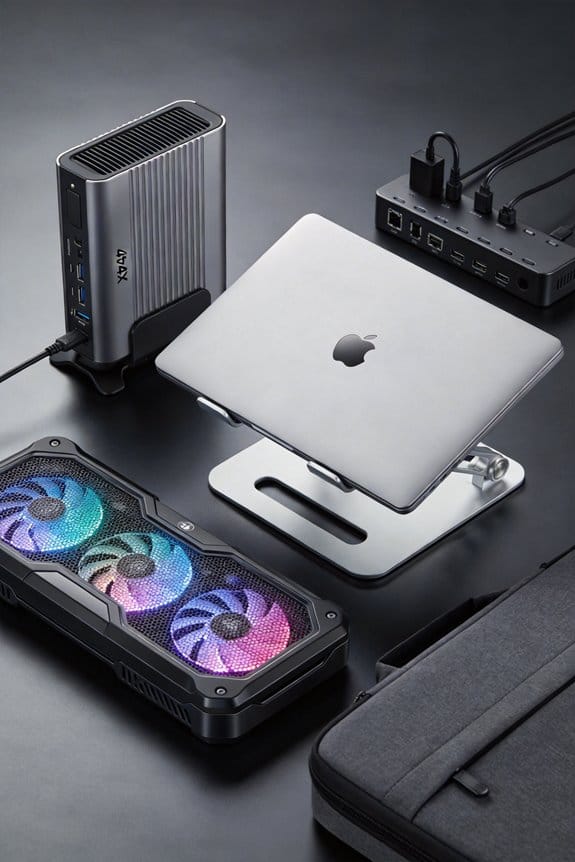
We recommend starting with a low‑static vacuum to pull out the big dust clumps, then finish with 0.5‑second bursts of compressed air at a 45‑degree angle, about two inches away, to blow the remaining particles out of the vents. The vacuum’s HEPA filter catches 99.97 % of particles down to 0.3 µm, while short air bursts prevent moisture buildup and indoor dust clouds. Keep the nozzle a few centimeters from the surface and work in a well‑ventilated spot for safety. If you keep going, we’ll show you the exact step‑by‑step routine.
Key Takeaways
- Vacuum first removes bulk dust safely, using a soft‑brush head and grounded, low‑static vacuum to protect airflow.
- Short, 0.5‑second bursts of compressed air push remaining particles out of vents when angled at 45°, but must be done outdoors or in a well‑ventilated area.
- Combine both: vacuum to capture large debris, then a brief air burst to dislodge fine dust from hard‑to‑reach fan blades.
- Use a HEPA‑filtered vacuum and an air‑filtration box or hose‑behind‑nozzle setup to prevent dust clouds and moisture buildup.
- After cleaning, pause to dissipate static, wipe with a dry microfiber, and reassemble only once the pad is completely dry.
Which Cleaning Method Should You Start With? Compressed Air or Vacuum?
Ever wonder which tool to grab first when cleaning a cooling pad? We usually start with a vacuum because it captures dust, keeping the air clean and protecting airflow safety. A shop‑vac with a soft brush head lifts large particles, so they don’t fall back onto the fins. After the bulk is gone, we switch to a short burst of compressed air to dislodge the fine grit that the vacuum missed. This two‑step routine balances dust removal and airflow safety, and it takes about five minutes total. (We’ve tried the opposite order and ended up with more dust clouds, so stick with vacuum first.)
Safe Use of Compressed Air on a Laptop Cooling Pad (Avoid Dust Clouds)

How do we keep the dust from turning into a cloud when we blast a laptop cooling pad with compressed air? We start by working outside or in a well‑ventilated area, so any particles drift away instead of settling back inside. We use short bursts—no longer than 0.5 seconds—to limit the amount of dust lifted at once, and we aim the nozzle at a 45‑degree angle to push dust away from the fan vents. A simple air filtration box, like a small shop‑vac with a HEPA filter, can capture the exhaust stream; we place the hose just behind the nozzle to pull the particles into the bag. This dust prevention trick keeps the pad clean without creating a mess, and it’s easy to set up with tools we already have.
Electronics‑Safe Vacuum Features for Laptop Cooling Pads

Why settle for a regular vacuum that could zap your laptop’s cooling pad? We recommend an electronics safe vacuum with a grounded metal body, low‑static brushless motor, and HEPA filter rated at 99.97 % for 0.3 µm particles. These units often include a detachable nozzle that fits tight vent gaps, and a variable suction dial that lets us set just enough power—typically 2–4 psi—to lift dust without pulling on delicate fins. Our dust proofing tips: turn the pad upside down, run the hose for 15 seconds, then pause to let static dissipate, and empty the bag into a sealed container. We’ve found a 1‑liter capacity works well for weekly clean‑ups, keeping the pad clear and the circuitry safe.
Best Practices for Laptop Cooling Pad Cleaning With Compressed Air

When you grab a can of compressed air for your cooling pad, start with short bursts—about half a second each—to avoid excess moisture from the expanding gas. We’ll keep the nozzle a few centimeters away, aim at the fan blades, then sweep across the vents for about ten seconds total. This creates ideal airflow without blowing dust deeper, and the quick bursts reduce static concerns that can arise from prolonged spraying. We recommend working outdoors or in a well‑ventilated room, wearing safety glasses, and letting the pad dry for a minute before plugging it back in. A quick shake of the can before use helps maintain pressure, and a second pass with a soft brush catches any remaining particles. This routine is fast, safe, and keeps the pad humming cool.
Step‑By‑Step: Cleaning a Laptop Cooling Pad With Compressed Air

We’ve already covered the basics of using a can of compressed air, so let’s walk through the exact steps to get your cooling pad spotless. First, take the pad outside or into a well‑ventilated area; this helps with dust containment and prevents indoor clouds. Hold the can upright, wear eye protection, and use short 0.5‑second bursts, moving across each fan and vent, keeping the nozzle about 2 inches away. Next, flip the pad over and repeat on the underside, aiming at the mesh and any crevices, again using short bursts to avoid moisture buildup. Finally, let the pad sit for a minute, then wipe any loose particles with a dry microfiber cloth. Remember, air safety matters—never shake the can, and keep flames far away.
Step‑By‑Step: Cleaning a Laptop Cooling Pad With a Vacuum Cleaner
Ever wondered how to get that stubborn dust out of a cooling pad without blowing it around? We start by unplugging the pad and flipping it over, then we attach a narrow nozzle to a shop‑vac set to low suction. A gentle, sweeping motion across the fan grilles pulls out clumps, while the vacuum’s bag catches the debris for dust reduction. Next, we run the nozzle along the vents for about 30 seconds each side, making sure we don’t linger too long to avoid static. Finally, we flip the pad back, give the fan blades a quick brush, and test airflow optimization by feeling the breeze; if it feels stronger, we’re done. This method is quick, safe, and keeps the pad tidy.
How to Verify a Clean Laptop Cooling Pad Before Reassembly
After vacuuming the pad, we give it a quick visual check before snapping it back together. We hold the pad under bright light, look for any specks left on the fins, and run a fingertip across the surface to feel for grit. If we see even a tiny mote, we repeat the dust verification with a short air burst, then re‑inspect. For the reassembly check, we make sure the fan blades spin freely, the heat‑sink contacts are clear, and the mounting clips line up without wobble. A quick test run at low fan speed confirms airflow is steady. We’re satisfied when no dust is visible, no resistance is felt, and everything fits snugly. This step saves overheating later.
When to Combine Air and Vacuum for Maximum Dust Removal
How do we get the most dust out of a cooling pad without turning our desk into a cloud? First, we use the vacuum to pull out the bulk of the debris—about two‑thirds of the dust settles in the filter, making disposal easy. Then we give the air a short, controlled burst, aiming for airflow optimization that pushes the remaining fine particles toward the vacuum intake. We time the bursts to 0.5‑second intervals, pausing so the suction can capture the cloud before it spreads. Finally, we sweep the area with a soft brush, keeping the vacuum on low to catch any stray specks. This combo gives us a clean pad fast, without a mess.
Maintenance Tips to Keep Your Laptop Cooling Pad Dust‑Free Long‑Term
What’s the simplest way to keep your cooling pad dust‑free for months? We start with a quick weekly sweep using a soft brush and a short burst of compressed air, then follow with a handheld vacuum for the larger particles. This two‑step dust free tips combo prevents buildup before it settles. Next, we set a monthly maintenance routine: remove the pad, wipe the underside with a damp microfiber, let it dry ten minutes, and re‑assemble. We also recommend placing the pad on a raised stand when not in use, which reduces static‑attracted dust. Finally, keep a small can of air duster in your desk drawer for quick touch‑ups; a few seconds each week keeps the pad fresh without hassle.
Frequently Asked Questions
Can I Use a Regular Household Vacuum on My Cooling Pad Without Damage?
We’d say yes, but keep the vacuum’s suction low to avoid airflow disruption and static; use a soft brush on randomized vents, ensuring vacuum safety and pad longevity.
Will a Can Air Duster Leave Residue on the Pad’s Surface?
We’ll tell you straight: a can‑air duster can leave residue, especially if moisture risk’s present, and that dust buildup may linger on the pad’s surface if you don’t capture it immediately.
How Often Should I Clean My Cooling Pad to Prevent Overheating?
We recommend cleaning your cooling pad every two weeks, adjusting the maintenance schedule if you notice dust buildup, to keep cooling efficiency high and prevent overheating during heavy use.
Do I Need to Power off the Laptop Before Cleaning With Air or Vacuum?
We’ll power off first—safety precautions demand it—then you can use air or vacuum without risking shorts, and that brief pause protects the laptop while you clear dust.
Can Cleaning With Alcohol or Disinfectant Affect the Pad’s Material?
We’ll tell you that abrasive cleaners and water exposure can damage the pad’s material, so avoid them; instead, use a soft, lightly‑damp cloth with mild alcohol, and keep the pad dry.