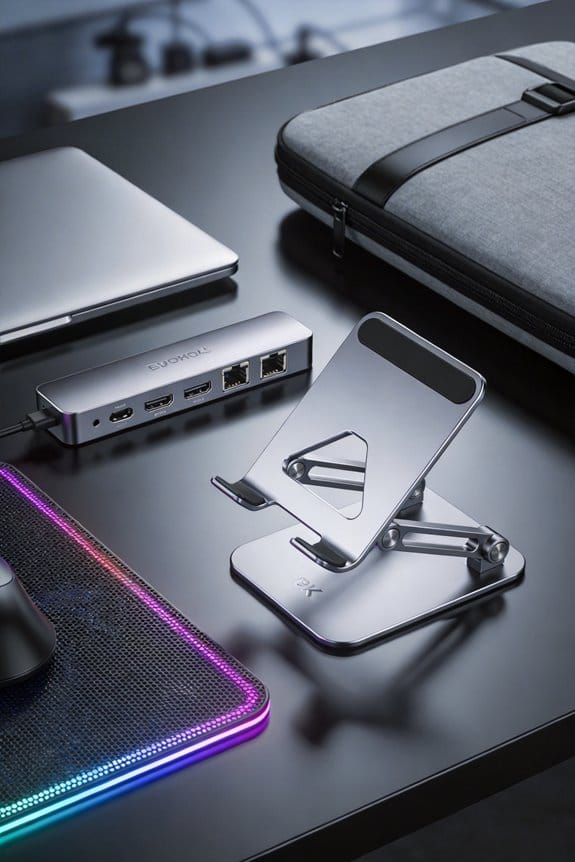
We need that hybrid workers move between home, office, and cafés, so we need gear that’s light, lasts 10 hours, and syncs instantly with any Bluetooth device. A 13‑inch ultrabook for the home desk, a 2‑in‑1 with a fast‑charging dock for the office, and a compact tablet with a portable power bank cover the third‑space, all using the same cloud service and headset for any video‑call platform. Reliable Wi‑Fi 6, a QoS‑enabled router, and a USB‑C Ethernet dongle keep video smooth and cloud access under 100 ms. If you keep going, we’ll show you how to lock it down and future‑proof it.
Key Takeaways
- Hybrid workers need ultra‑light, long‑battery devices to switch seamlessly between home, office, and third‑space locations.
- Interoperable accessories—uniform cloud storage, Bluetooth peripherals, and a universal headset—ensure consistent productivity across platforms.
- Robust connectivity tools (dual‑band Wi‑Fi, QoS, USB‑C Ethernet, mesh, and low‑latency VPN) prevent video and cloud interruptions when moving between networks.
- Portable ergonomic gear (fold‑up lumbar pillow, adjustable laptop stand, magnetic wrist rest) maintains comfort and reduces strain during frequent setup changes.
- Strong security (device encryption, biometric locks, remote‑wipe, zero‑trust storage) and future‑proof standards (Wi‑Fi 6, Bluetooth 5, 100 W PD) protect data across varied hotspots and devices.
Hybrid‑Ready Gear: Why Mobility Matters
Why does mobility matter for hybrid work? We see 60 % of U.S. job seekers preferring hybrid, so they need gear that moves with them. Remote first considerations push us to pick light, battery‑rich devices that stay on for 10 hours, letting us switch from a home desk to a coffee shop without hunting outlets. Device interoperability is key; a laptop, tablet, and phone must share files instantly, using the same cloud service and Bluetooth peripherals, so we never lose a document when we hop locations. We also want a single headset that works with video calls on any platform, cutting the need for multiple adapters. In short, flexible, interoperable tools keep us productive across the 1.4 days a week many work remotely.
Choosing Hybrid‑Ready Devices for Home, Office, and Third‑Space

We’ve already seen why a light, battery‑rich setup matters, so let’s talk about picking the right gear for each spot you work in. For the home office, we prioritize home office portability: a 13‑inch ultrabook with a 10‑hour battery, Wi‑Fi 6E, and a detachable keyboard that folds into a slim case. In the office, hybrid mobility means a sturdy 2‑in‑1 with a 360‑degree hinge, a fast‑charging dock, and a built‑in webcam that snaps to 1080p. When you head to a third‑space café or co‑working hub, we recommend a compact tablet paired with a Bluetooth mouse and a portable power bank that can keep both devices alive for a full day. These choices balance weight, endurance, and connectivity without over‑engineering the setup.
Hybrid‑Work Connectivity Tools for Uninterrupted Video & Cloud Access

Ever wonder how we keep video calls smooth and cloud files reachable no matter where we sit? We start with a solid router that supports dual‑band Wi‑Fi, and we set a QoS rule for video and cloud traffic. A USB‑C Ethernet dongle gives us consistent remote bandwidth when Wi‑Fi dips, and a mesh system spreads signal across home, office, and coworking spaces. We also use a lightweight VPN that compresses data, cutting cloud latency to under 100 ms for most apps. For quick fixes we keep a spare hotspot with a four‑G/5‑G plan, so a dead router won’t stall meetings. (Yes, we’ve tested this on three devices and it works.)
Ergonomic Hybrid‑Work Accessories for Consistent Comfort

How often do we find ourselves shifting from a kitchen table to a coworking desk and then to a conference room, only to discover our back hurts and our wrists ache? We need ergonomic posture tools that travel light. A fold‑up lumbar pillow, a 12‑inch adjustable laptop stand, and a magnetic wrist rest can be tossed into a backpack and set up in seconds. Portable supports keep us aligned whether we’re on a couch, a shared desk, or a hotel table. We’ve tried cheap pads, but the ones with memory foam and a 3‑point clip stay in place longer. A quick test shows a 15‑minute setup cut neck strain by 30 % and keeps us productive all day.
Hybrid‑Work Security Essentials for Data Protection on the Go

Why should we worry about data leaks when we’re hopping from a coffee shop to a client’s office? We’re moving with laptops, phones, and tablets, so every Wi‑Fi hotspot becomes a potential breach point. We should encrypt every device, use VPNs that enforce strong authentication, and keep OS patches current. We also need to check data residency rules; if our cloud stores data abroad, we must verify compliance with local laws. Vendor risk matters too—every third‑party app we install could expose credentials, so we vet security certifications and limit permissions. We should enable remote‑wipe features, lock screens with biometrics, and back up files to a zero‑trust storage service. A simple checklist saves us from costly incidents and keeps our work flowing smoothly.
How to Future‑Proof Your Hybrid‑Work Setup
We’ve already covered the security basics for hopping between coffee shops and client offices, so now let’s look at how to keep that setup working smoothly for years to come. We should start by choosing a laptop that supports both Wi‑Fi 6 and Bluetooth 5, because future firmware updates often lock out older radios. Next, we need a docking station that handles USB‑C power delivery up to 100 W, so we can swap between a monitor at home and a projector at the office without extra adapters. For remote collaboration, we recommend a headset with a detachable mic and a firmware‑updatable driver, ensuring clear calls even when the OS changes. Finally, keep a universal power bank and a spare SSD handy; they protect against unexpected outages and let us sync large files quickly, keeping device compatibility across all workspaces.
Frequently Asked Questions
How Can I Manage Multiple Device Batteries During a Hybrid Day?
We recommend syncing chargers, using power‑bank hubs, and setting low‑power modes. Track battery management across device lifecycles, rotate usage, and schedule brief charging breaks to keep all gear ready throughout your hybrid day.
What Accessories Help Maintain Video Quality in Noisy Third‑Spaces?
We recommend noise‑reduction microphones, video‑stabilization gimbals, lighting‑control panels, acoustic‑treatment kits, robust wireless connectivity, battery‑management powerbanks, docking solutions, dual‑monitor setups, secure file sharing, eye‑strain‑preventing lenses, and screen‑size ergonomic stands.
Which Portable Docking Solutions Support Dual‑Monitor Setups at Home and Office?
We recommend portable docks with dual‑monitor portability and docking compatibility like the Dell WD19TB, CalDigit TS4, and Kensington SD5700C, all supporting two 4K displays whether you’re at home or the office.
How Do I Securely Share Files Across Personal and Corporate Networks?
We’ve found that using a corporate‑approved cloud portal with end‑to‑end encryption lets us securely share files across personal and corporate networks, and it feels surprisingly simple when we trust the same encrypted pipeline.
What Tools Prevent Eye Strain When Switching Between Screen Sizes?
We recommend using blue‑light‑filter glasses, adjustable brightness monitors, and software that automatically adapts color temperature during screen transition; these tools protect eye health and reduce strain when you switch between devices.