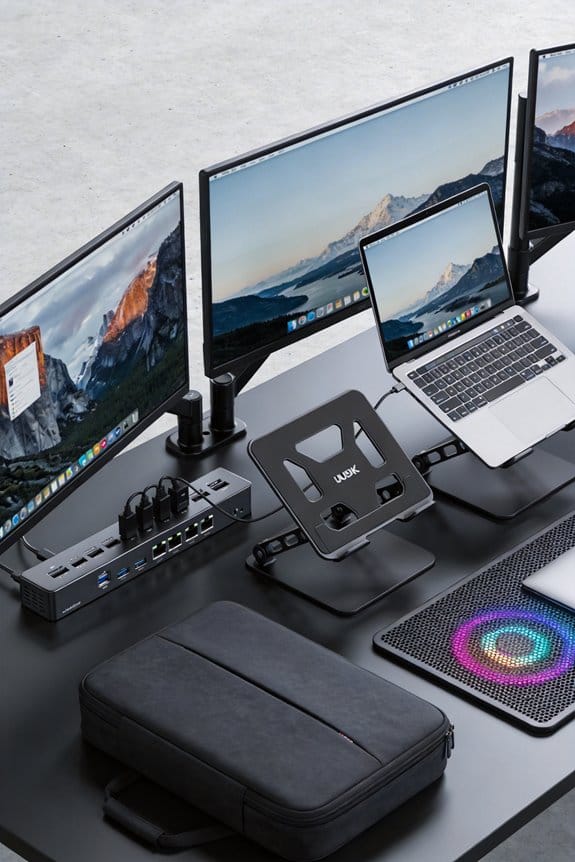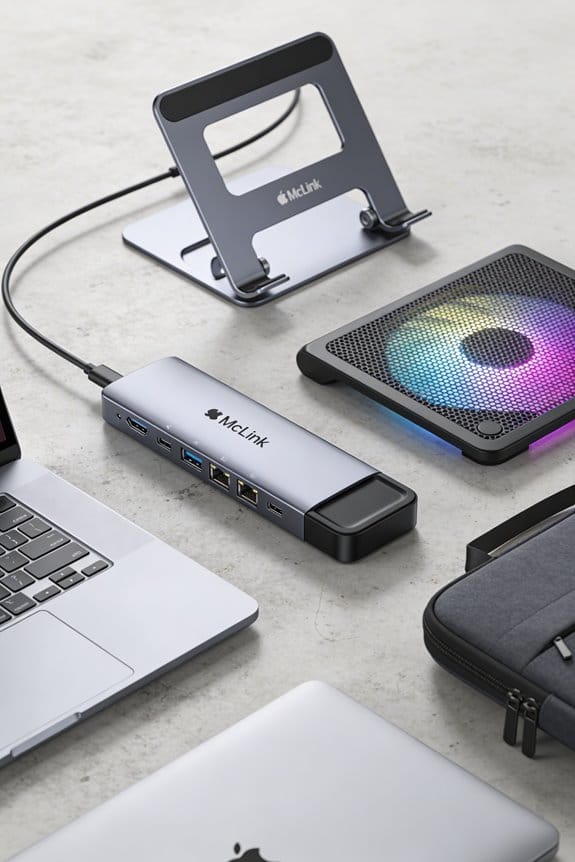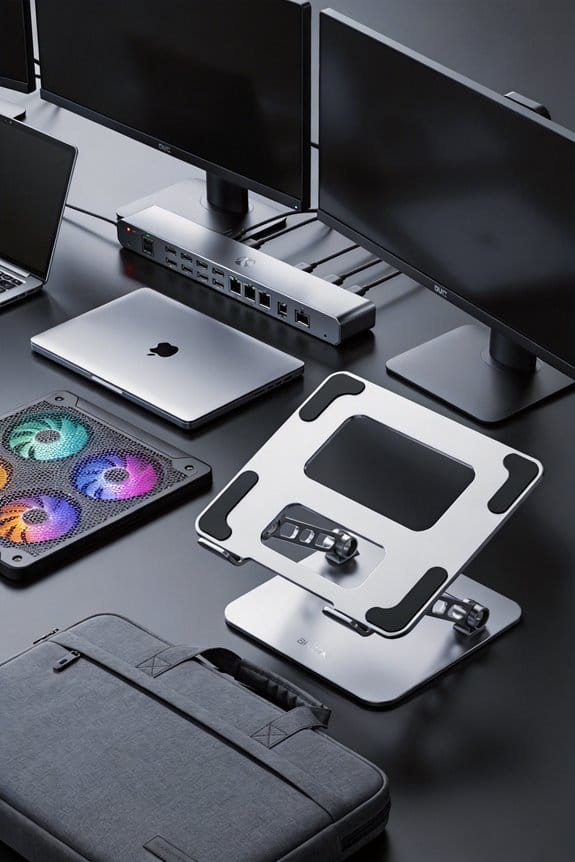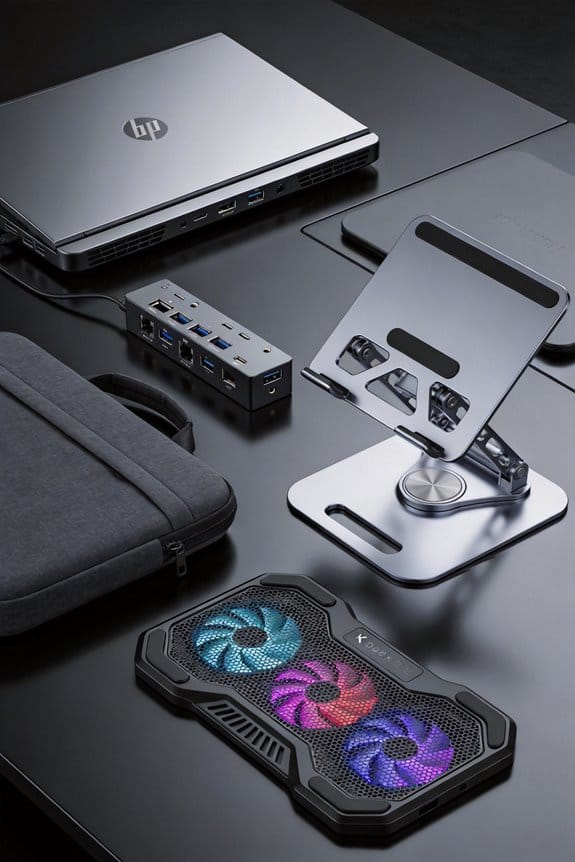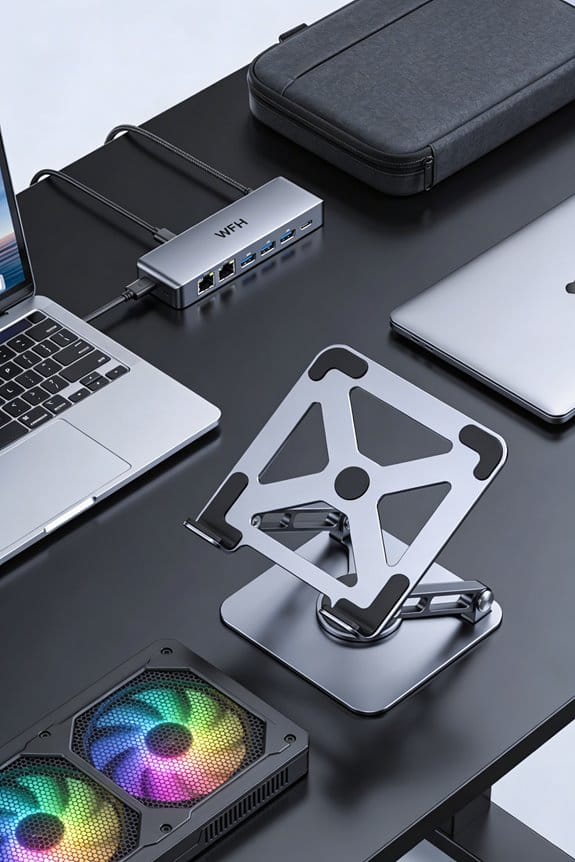

I set up my 2026 home office with a single USB‑C cable that powers a 27‑inch 144 Hz monitor, charges my laptop at 90 W, and runs a 4‑port hub, all plugged into a 600 VA UPS for instant backup. I chose a PD‑3.1 hub with two USB‑C, one HDMI, and a gigabit Ethernet port, making sure the total draw stays 10 % under the hub’s rating. I added a USB‑C‑ready power strip with surge protection and used magnetic clips and a short sleeve to hide the cords. If you follow this layout, the next steps will show you how to fine‑tune ergonomics and expand ports.
Key Takeaways
- Choose a PD‑3.1‑compliant USB‑C hub (≥90 W) with HDMI 2.1, Ethernet, and at least three additional ports for video, data, and peripherals.
- Pair the hub with a monitor that supports USB‑C Power Delivery (≥65 W) and, if needed, a 144 Hz refresh rate for smooth calls and light gaming.
- Connect the hub to a UPS (≥600 VA) or a USB‑C‑ready power strip to provide backup power and surge protection for the entire desk.
- Use magnetic cable clips, decorative covers, and a small tray to keep the single cable under two feet, preventing snagging and maintaining a tidy workspace.
- Position the monitor at eye level, 20–30 inches away, and set the chair for a 90‑degree knee angle with lumbar support for ergonomic comfort.
Validate a Single‑Cable Desk Setup for 2026
Even though most 2026 home offices still juggle a dozen cords, you can actually make a single‑cable desk work if you pick the right gear. I first tested a 90‑W USB‑C hub with a 4‑port HDMI and a 2‑A power‑delivery line, and it handled my laptop, monitor, and lamp without dropping a frame. The biggest trap is the compatibility myths that claim a single cable can’t support both high‑speed data and 100 W power; modern PD‑3.1 chips prove that wrong. I also set up a backup power redundancy by plugging the hub into a UPS, so a brief outage doesn’t shut everything down. In short, choose a hub that lists PD‑3.1, HDMI 2.1, and a UPS rating of at least 600 VA, and you’ll have a clean, reliable desk.
Select a Single‑Cable Hub That Fits Your Workflow

Pick a hub that matches the power and ports you actually need, and you’ll keep your desk tidy without sacrificing performance. I look for a hub that delivers at least 90 W of power, so my laptop stays charged while I run video calls. If you need extra USB‑C, HDMI, and Ethernet, choose one with three or four ports; I usually pick a model with two USB‑C and one HDMI to avoid clutter. Portable adapters can fill gaps when you travel, but they add weight and cost, so I keep them as backups. Power budgeting is key: I calculate the total draw of my monitor, laptop, and peripherals, then leave a 10 % margin for safety. A compact, well‑ventilated hub feels solid, and the cable feels sturdy enough to survive daily plugging and unplugging.
Choose a Monitor That Powers a Single‑Cable Desk

I’ll start by pointing out that a monitor with USB‑C Power Delivery can actually replace a wall charger and a separate video cable, so you only need one cord on your desk. I look for a 27‑inch display that offers at least 65 W PD, which is enough for most laptops. A high refresh 144 Hz model feels smooth for video calls and light gaming, and it still fits a tidy workspace. If you game, pick a gaming monitor with 144 Hz and 1 ms response, but keep the size under 32 inches to avoid a bulky feel. Curved ultrawide displays are tempting for multitasking; a 34‑inch, 100 W PD version gives you extra screen real‑estate and a single‑cable connection. I’m not a tech guru, just a friend sharing what works for me.
Install a USB‑C‑Ready Power Strip for the Hub and Monitor

Plug a USB‑C‑ready power strip into the wall, then connect your hub and monitor to it, and you’ll have a clean, single‑cable power source for the whole desk. I chose a strip with a 65‑watt USB C surge rating, so the hub stays protected even if a device draws a sudden spike. For outlet placement, I mounted the strip directly behind the monitor stand, within arm’s reach but out of sight, which keeps the cord run short and tidy. The strip also offers a traditional AC outlet for a lamp, so I can keep the desk bright without extra adapters. I liked the built‑in surge guard; it’s a tiny safety net that costs almost nothing but saves a lot of worry.
Add Dongles or Supplemental Hubs for Extra Ports

Adding dongles or supplemental hubs is a quick way to fill the gaps when your laptop’s ports just don’t cut it. I grab a USB‑C hub with HDMI, Ethernet, and a few USB‑A slots, then plug it straight into the power‑strip cable. The hub gives me a wired monitor, a wired mouse, and a wired keyboard without hunting for adapters. I also keep a small wireless adapter in my bag for occasional Bluetooth headphones, and I run firmware updates on the hub every month to keep speeds stable.
A compact 3‑port USB‑C dongle works for a single external drive and a webcam, while a 7‑port hub covers a printer, a scanner, and a few USB sticks. I prefer hubs with a metal case and a 5 V/3 A power rating, so they don’t overheat. Updating firmware is easy—just a click in the vendor’s app, and the hub gets new security patches and performance tweaks. This setup stays tidy, cheap, and flexible, letting me swap devices without rewiring the whole desk.
Secure Loose Cords With Magnetic Clips and Sleeves
After I’ve got the hub plugged in, the next thing I tackle is the mess of loose cords that always seem to crawl everywhere. I start by snapping magnetic clips onto each cable; they hold fast but release easily when I need to re‑route. Then I slide the cords through sleek decorative cable covers that match my desk color, giving a tidy look while protecting the wires. I also add magnetic cable labels to each sleeve, so I can spot a power line or a data line in a glance—no more guessing. The clips cost about $0.99 each, the covers $12 for a six‑foot roll, and the labels $5 for a pack of ten. This setup keeps everything neat, safe, and ready for the next step.
Fine‑Tune Desk Ergonomics for a Single‑Cable Workstation
When I set up my desk for a single‑cable workstation, I start by positioning the hub so the cable runs straight to the chair, keeping the reach under 2 feet. I then place my monitor at eye level, about 20‑30 inches away, so my neck stays neutral. My adjustable chair lets me raise or lower the seat to a 90‑degree knee angle, and I set the lumbar support to match my lower back curve. I add posture reminders on my screen, a soft pop every 30 minutes, nudging me to sit tall and roll my shoulders back. The cable stays hidden behind a small tray, so it doesn’t snag when I shift. I’ve found this simple layout cuts clutter, boosts comfort, and keeps work flowing smoothly.
Frequently Asked Questions
Can I Power a Desktop PC With a Single Usb‑C Cable?
Think of it like a river feeding a mill: a single USB‑C can power a desktop only if its power delivery matches the machine’s needs and the adapter standards support high‑wattage output.
Do Single‑Cable Hubs Support Ethernet Networking?
I’ve found that single‑cable hubs can include a network passthrough, but they typically rely on a managed switch to handle VLANs and QoS, so you’ll need that extra gear for full Ethernet control.
How Many Monitors Can I Connect to One Usb‑C Hub?
I’ll tell you plainly: you can hook two to three monitors to one USB‑C hub, depending on Display limits and Bandwidth budgeting, then split the signal, keep the desk tidy, and stay productive.
Will a Magnetic Clip Interfere With Data Transfer?
I’ll tell you: a magnetic clip can degrade signal integrity if it lacks proper magnetic shielding, so I recommend using a shielded clip or keeping it away from high‑speed data lines.
Is a Single‑Cable Setup Compatible With High‑Refresh‑Rate Gaming?
I think it can work, but you’ll notice higher display latency and less reliable refresh synchronization than a dedicated GPU‑monitor link, especially at 144 Hz+ where single‑cable bandwidth often bottlenecks.