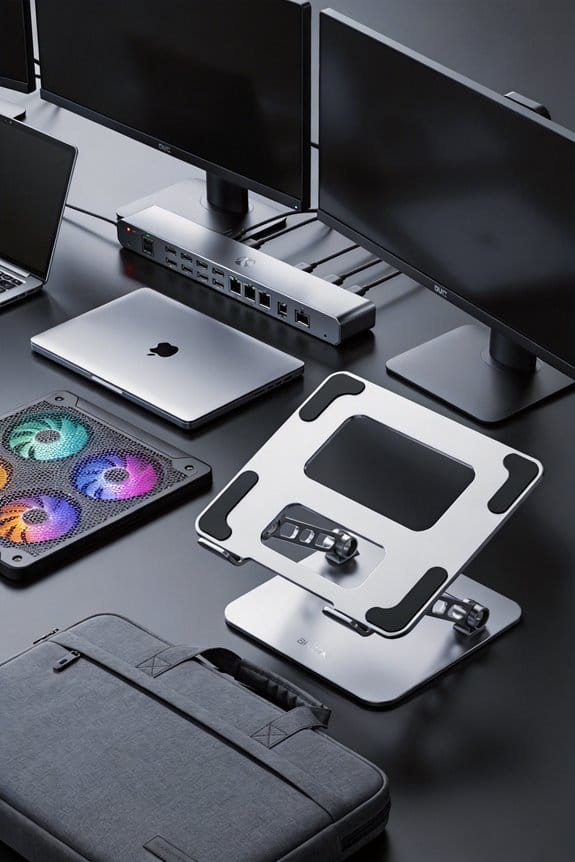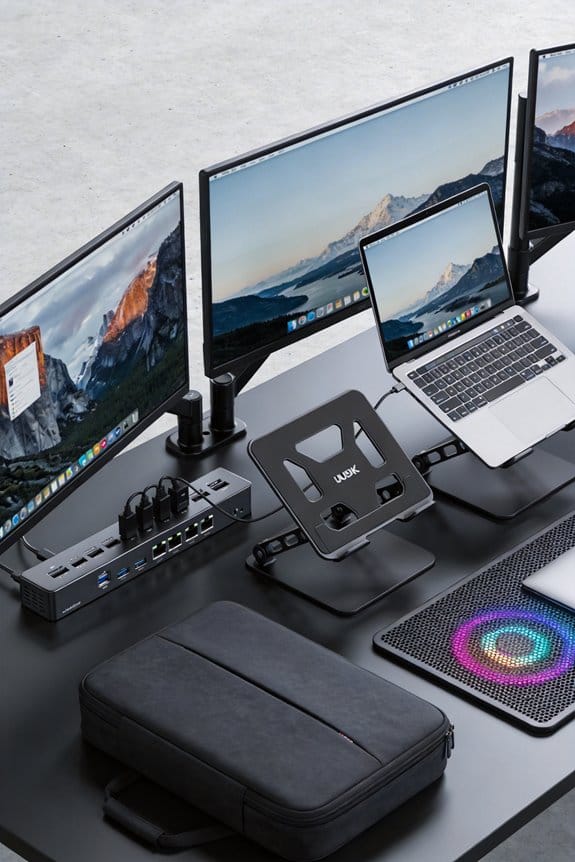

I’ve noticed that most remote workers now run either a dual‑4K or a triple‑1080p rig because it slashes the time spent alt‑tabbing and lets them keep reference material, code, and chat windows visible at once. A dual‑4K pair gives crisp text and accurate colors for charts, while three 1080p screens add extra real‑estate for stacked layouts without breaking the bank. The setup works well on a mid‑range GPU like an RTX 3060 if you keep refresh rates around 60–120 Hz, and proper cable management keeps the desk tidy. If you keep going, you’ll see how to choose sizes, refresh rates, and ergonomic layouts that fit any budget.
Key Takeaways
- Multiple screens expand visual workspace, reducing alt‑tabbing and letting users view reference material, communication apps, and primary work simultaneously.
- Dual‑4K setups deliver sharper text and color accuracy for design‑heavy tasks, while triple‑1080p offers broader real‑estate for multitasking at lower cost.
- Consistent monitor size and refresh rates across the array prevent mismatched edges and ensure smooth scrolling and video calls.
- Modern GPUs (e.g., RTX 3060) comfortably drive three 1080p displays, whereas dual 4K may require lower refresh rates to avoid bandwidth bottlenecks.
- Ergonomic stacking or side‑by‑side arrangements improve posture and desk organization, supporting longer, more productive WFH sessions.
Which Remote‑Work Setup Wins: Dual‑4K or Triple‑1080p?
If you’re juggling spreadsheets, video calls, and a bit of design work, a dual‑4K rig can feel like a sleek, high‑resolution cockpit, especially when you pair two Dell U2725QE panels at 27 inches each and spend about $1,300 total. I love the crisp text and color accuracy, which keeps my charts looking true and my mockups vivid. The bezels are thin enough that the impact on a seamless view is barely noticeable, so I can drag windows across without a jarring break.
On the other hand, a triple‑1080p setup costs roughly $900 for three 24‑inch monitors and gives you more screen real estate. You can stack one on top of the other, creating a tall column that’s perfect for coding and chat windows side by side. Color accuracy isn’t as high as 4K, but for most office apps it’s fine, and the bezels are a bit more noticeable when you line them up.
If you need precise visuals and can afford the GPU power, dual‑4K wins. If you crave extra space and a lower price, triple‑1080p works well. Both avoid the single‑monitor bottleneck.
How Dual and Triple Monitors Boost Home‑Office Productivity

I often find that adding a second screen instantly widens my workspace, letting me keep email open on one monitor while drafting reports on the other without constantly alt‑tabbing. I set up workflow zoning: one display holds reference material, the other hosts the active document, so I never lose focus. The extra real estate cuts down on distraction reduction because I’m not hunting for tabs, and I can glance at a calendar without breaking concentration. With a third monitor I can add a communication pane, keeping chat and video calls separate from work tasks. I’ve seen my task completion speed jump about 20 % when I use this layout, and the desk stays tidy because the screens stack neatly, not crowding the surface.
Choosing the Right Size & Refresh Rate for Your Remote‑Work Desk
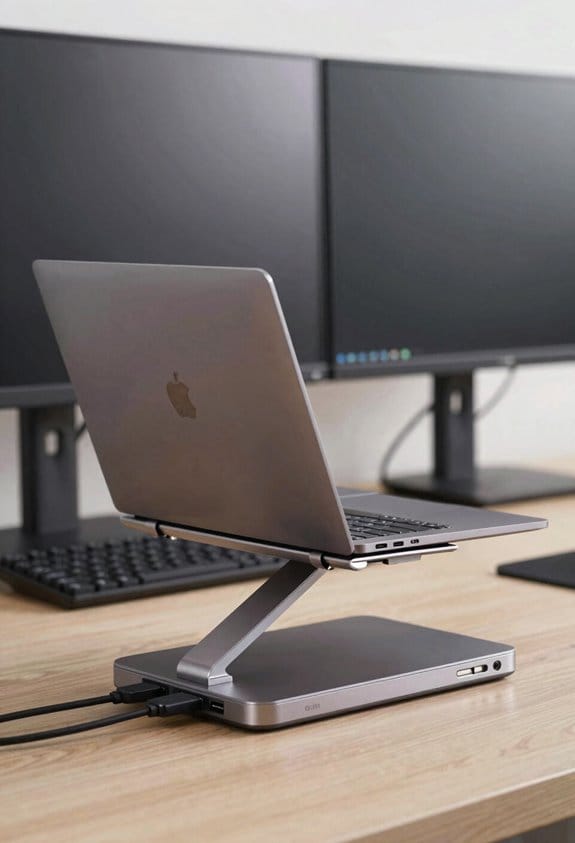
Pick a 24‑ to 27‑inch screen for most remote‑work desks; it fits comfortably on a typical desk and gives enough space for side‑by‑side apps without crowding the room. I like that size because it balances screen size and desk real. A 144 Hz refresh rate feels smooth for scrolling and video calls, yet 60 Hz is plenty for spreadsheets. If you add a second monitor, keep the same size to avoid mismatched edges; it looks tidy and you won’t need extra adapters. For a triple setup, stick to the same 24‑27‑inch panels, so the total width stays manageable and the refresh rate stays consistent across all displays. I’ve found this combo boosts productivity without breaking the budget.
Will Your GPU Handle 4K @ 144 Hz or Triple‑1080p?

I’ve already shown you why 24‑27‑inch panels work well for remote work, so let’s see if your GPU can keep up when you push it to 4K @ 144 Hz or go for three 1080p screens instead. A modern RTX 3060 can hit 4K @ 144 Hz only if you drop settings, because GPU limits hit the Display bandwidth ceiling quickly; the PCIe‑x16 lane can push about 15 Gbps per DisplayPort, enough for two 1440p monitors but tight for a single 4K @ 144 Hz stream. Triple 1080p at 144 Hz is far easier: each panel needs roughly 5 Gbps, so a mid‑range card like a GTX 1660 will handle it without breaking a sweat. Check your card’s VRAM—8 GB is safe for most office apps, but gaming at 4K @ 144 Hz may need 12 GB. If you hit a bottleneck, lower the refresh to 120 Hz or switch to 60 Hz for smoother performance. This test helps you avoid surprise frame drops and keeps your workflow fluid.
Cable Management for Dual and Triple Monitors

When you’re setting up a dual or triple monitor rig, a tidy cable run can make all the difference between a sleek workspace and a tangled mess. I start by gathering all power and video cords, then group them with cable sleeves that keep the bundle tight and hide the clutter. Next, I place adhesive clips along the back of the desk, spacing them every 6‑8 inches so the sleeves stay flat and don’t droop. For a triple setup I add an extra clip at the center to prevent sagging where the three monitors meet. The result is a clean line that looks professional, reduces strain on the connectors, and makes future upgrades painless.
Ergonomic Layouts: Stacked Dual vs. Mixed Triple
If you want a setup that feels natural for long‑hour work, a stacked dual—one screen directly above the other—keeps your eyes moving mostly up and down, which is easier on the neck than constantly swiveling. I’ve tried a 27‑inch pair at 24 inches apart vertically, and the neck strain drops dramatically. The monitor arcing is minimal because you don’t chase a far‑right corner; you just glance up or down. In a mixed triple, I place two side‑by‑side and the third on a stand to the right, giving a wider field but forcing you to rotate your head more often. That can add subtle neck fatigue after a few hours. I love the stacked feel for coding or writing, while the triple shines for design work where you need a dedicated palette panel. Both fit a desk under 60 cm deep, but the stacked dual saves space and keeps posture smoother.
Budget‑Friendly Builds: Recommended Models & Total Costs
A solid budget‑friendly triple can be built for under $800 if you pick a 24‑inch 144 Hz panel like the ASUS VG279QM and pair it with two 1080p 24‑inch monitors such as the Acer B287K. I found a refurbished deal on the VG279QM for $210, and the Acer B287K runs $150 each when bought refurbished, leaving $190 for a stand and cables. A simple V‑stand holds all three securely, and cheap HDMI‑to‑DisplayPort adapters keep the GPU happy. I add a strip of desk lighting to reduce eye strain, which costs about $20. Total cost: roughly $800, and you get a smooth, bright workspace without breaking the bank.
Frequently Asked Questions
Do I Need a Monitor Arm for a Triple‑Monitor Setup?
I’d say yes, because a monitor arm cleans up cable management, frees desk space, and improves desk ergonomics, letting you position each screen for comfort and an clutter‑free workspace.
How Does Color Calibration Differ Between Dual‑4k and Triple‑1080p?
I find color consistency easier on dual‑4K because the panels usually share the same factory calibration, so I only need luminance balancing once; with triple‑1080p I must match each monitor individually.
Can I Use Mixed Monitors With Different Resolutions in a Triple Layout?
I tell you, mix resolutions freely—just watch that bezel mismatch becomes a visual comedy act, and your triple layout will juggle pixels like a circus performer balancing flaming torches.
What Is the Ideal Viewing Distance for a 27‑Inch 144HZ Monitor?
I’d say the ideal distance for a 27‑inch 144 Hz monitor is about 2.5‑3 feet, which keeps the refresh perception smooth and lets you see details without eye strain.
Will a 1080W GPU Adequately Support Three 1080P Monitors at 144HZ?
I think a 1080w GPU can power three 1080p 144 Hz displays, but watch for power delivery limits and thermal throttling; if either spikes, you’ll see frame drops or stuttering.