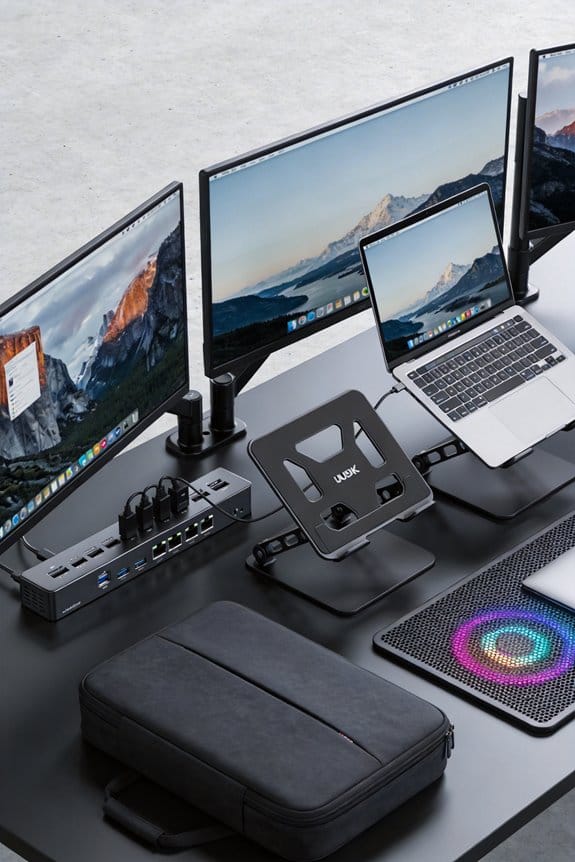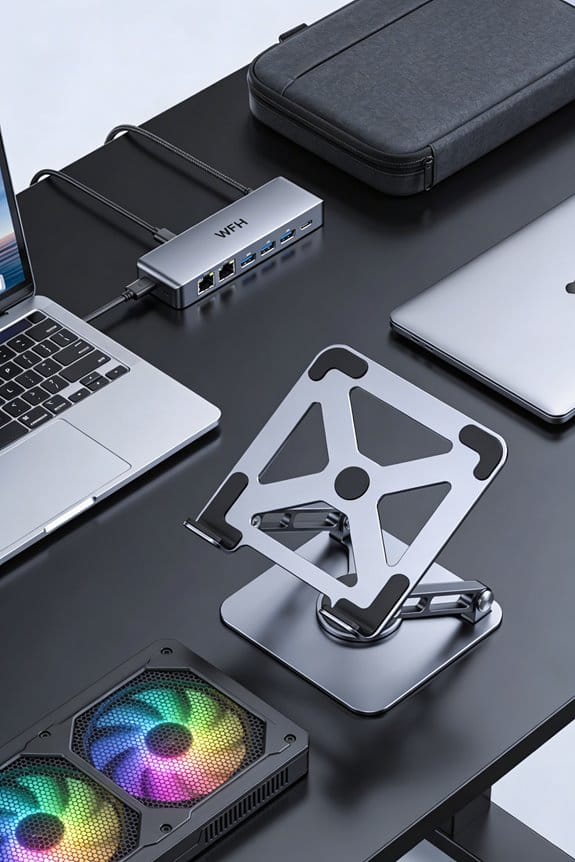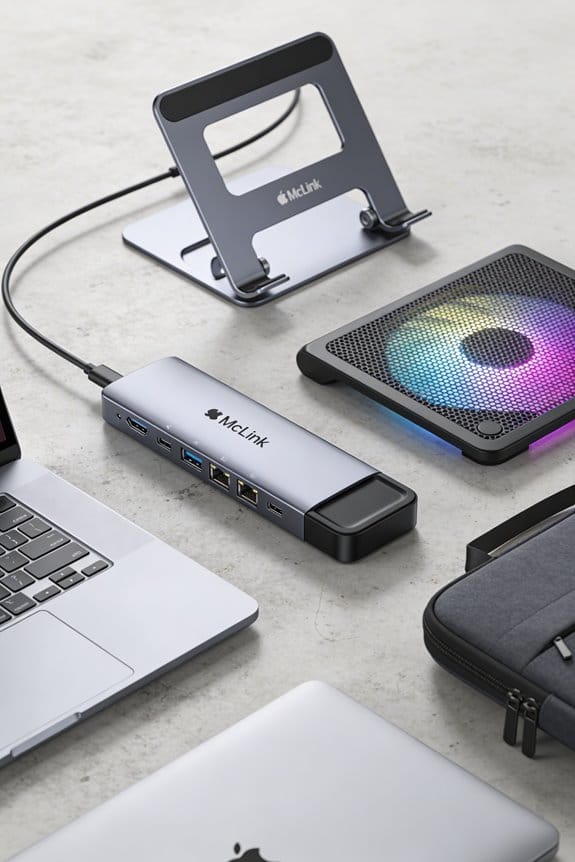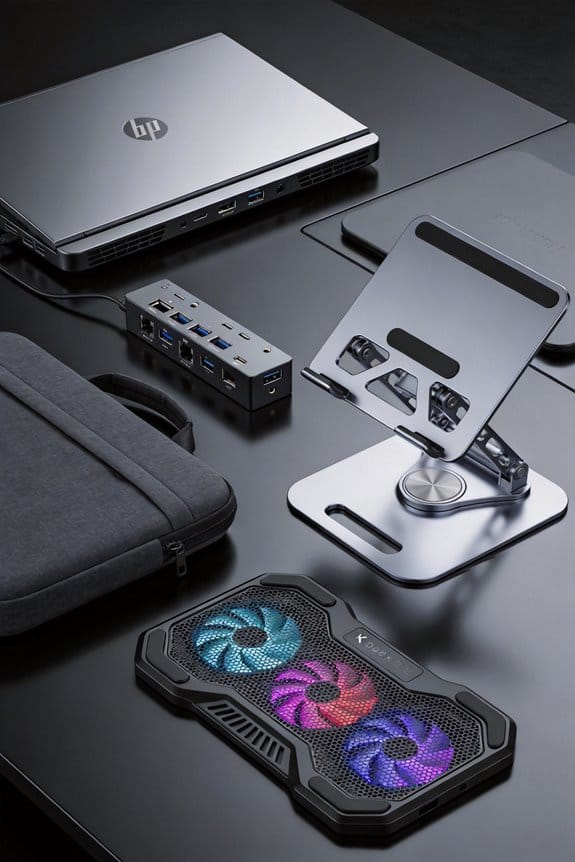

I’ll explain how a USB‑C dock safely powers your laptop: the dock reads the cable’s e‑marker, then negotiates a PD profile—usually 5 V × 3 A, 9 V × 2 A, 15 V × 3 A, or up to 20 V × 5 A (100 W). It reserves 5–10 W for its own electronics, so the laptop gets the remainder; if a device asks for more than the dock can give, it falls back to a lower, safe voltage. Fixed‑mode docks hold a steady wattage, while dynamic ones adjust on the fly, and pass‑through docks split a single wall adapter’s power among laptop, phone, and tablet. The controller watches for spikes, over‑current, and temperature (cutting power around 85 °C) to keep everything safe. If you keep reading, you’ll see how to pick the right profile, avoid cable issues, and decide whether a 140 W PD 3.1 dock is worth it.
Key Takeaways
- PD negotiation instantly matches cable, dock, and laptop capabilities, selecting a safe voltage/current profile (e.g., 5 V @ 3 A, 20 V @ 5 A).
- Docks reserve 5–10 W for internal functions, subtracting this from the total wattage to prevent sudden power drops.
- Dynamic PD mode adjusts power on‑the‑fly, while fixed mode provides a steady output for simpler, low‑cost docks.
- Safety systems monitor voltage spikes, over‑current, and temperature, throttling or shutting down to stay within limits (≤ 5 A, ≤ 85 °C).
- Compatibility depends on certified e‑marker cables and up‑to‑date firmware; Thunderbolt 3/4 and PD 3.1 enable up to 100 W/140 W charging when properly supported.
Power Delivery Basics: How USB‑C Negotiates Voltage & Current
I’ll walk you through how USB‑C actually decides what voltage and current to use. First, the devices exchange a PD contract during negotiation timing, usually within a few milliseconds after you plug in the cable. They compare capabilities and pick a profile—5 V at 3 A, 9 V at 2 A, 15 V at 3 A, or up to 20 V at 5 A—depending on what each side can handle. Cable identity matters: the controller reads the e‑marker inside the cable to confirm it can carry the chosen power level, otherwise it falls back to a lower, safe voltage. This quick handshake protects both sides, avoids overheating, and lets you charge a laptop at up to 100 W without extra adapters.
Fixed vs. Dynamic USB‑C Power Delivery in Docking Stations

When you plug a laptop into a docking station, the dock can either give a steady 60 W (fixed) or adjust up to 100 W (dynamic) based on what the laptop asks for. I’ve found that fixed vs.dynamic choices shape the user experience impact more than you might think. A fixed 60 W dock is simple, predictable, and works well for thin‑and‑light laptops that never need more than 45 W. However, a dynamic dock watches the laptop’s power contract, then ramps voltage and current up to 20 V × 5 A, keeping the charge fast even when you add a monitor or external SSD. The result? Less waiting, smoother multitasking, and fewer “low‑battery” warnings. I prefer dynamic for high‑performance workstations; fixed is fine if you’re on a budget and only use basic apps. (124 words)
Pass‑Through USB‑C Power Delivery: Power One Outlet to Multiple Devices

I’ve just shown how a dynamic dock can keep a laptop charging fast, and the next step is using that power for everything else. With pass‑through USB‑C PD, the dock pulls power from a single wall adapter—say 90 W—and splits it to the laptop, a phone, and a tablet. You plug the adapter into the dock, then connect all devices to the dock’s USB‑C ports; the dock handles the negotiation, so each gadget gets the right voltage and current. This setup cuts down on cable management, because you only need one outlet sharing point on your desk. It also means fewer chargers on the floor, less clutter, and a cleaner workspace. I find it especially handy when I’m juggling multiple devices at a coffee shop.
Choosing the Right PD Profile for Your Laptop

Pick the PD profile that matches your laptop’s power needs, and you’ll keep it charging fast without wasting energy. I start by checking the charger specs on my laptop—most ultrabooks need 45 W, while gaming rigs crave 90 W or more. If the dock offers a 20 V × 5 A (100 W) setting, I usually pick the lower 15 V × 3 A (45 W) profile for a thin‑and‑light model, because the battery chemistry—typically lithium‑ion—handles that voltage efficiently and stays cooler. I also make sure the dock’s firmware is up‑to‑date; recent firmware updates often fix negotiation bugs that could otherwise limit the power contract. Matching the profile to the laptop’s actual draw avoids over‑charging, reduces heat, and extends battery life.
Thunderbolt 3/4 as a USB‑C Power Delivery Transport

Think of Thunderbolt 3/4 as the ultimate USB‑C highway for power and data. I tell you it can push up to 100 W while moving 40 Gbps of video and network traffic, so a single cable charges my laptop and drives two 4K monitors. The magic is in Thunderbolt interoperability; a dock that follows the spec works with any USB‑C PD device, Mac or Windows, without extra adapters. I also check cable firmware – a recent update can fix voltage‑profile bugs and keep the connection stable. When I plug in a 90 W charger, the dock negotiates the exact contract, so I never over‑ or under‑power my gear. It’s simple, fast, and safe.
How USB‑C Docks Reserve Power for Their Own Operation
When a USB‑C dock powers itself, it usually keeps aside 5‑10 W of the total budget, just enough to run its internal chips, ports, and any active cooling. I call that the reserved wattage, and it’s set during firmware negotiation when the dock first talks to the laptop. The firmware tells the host “I need 8 W for my controller, HDMI, and Ethernet, so give me that slice.” In return the host reduces the laptop’s charge by the same amount, which is why you might see a slower fill rate if you have many peripherals attached. I’ve seen docks that reserve exactly 6 W, while others use up to 9 W, depending on their feature set and the power‑delivery profile they support. This tiny budget keeps the dock stable, lets it manage data flow, and prevents sudden power drops that could interrupt work.
USB‑C Power Delivery Safety Mechanisms: Over‑Current, Over‑Voltage, Temperature Protection
I’ve already mentioned how docks set aside a few watts for themselves, so now let’s look at what stops the whole system from blowing up. The PD controller constantly watches voltage and current, and if it sees a spike it triggers fault detection. That shuts down the line or drops the voltage to a safe level, preventing over‑voltage damage. When a device draws too much, the controller uses adaptive throttling to lower the current, keeping everything under the 5 A limit common in USB‑C PD. Temperature sensors inside the dock also feed data to the controller; if heat rises above 85 °C it will cut power or reduce output. These safeguards work together, so you can trust the dock to protect both laptop and peripherals without a fuss.
Typical PD Compatibility Problems & Quick Fixes
If a dock won’t charge your laptop at the expected speed, it’s usually a compatibility hiccup, not a broken piece. I’ve seen cable firmware outdated, causing the dock to negotiate a lower power profile. First, check the dock’s firmware version; update it from the manufacturer’s site, then reboot. Next, look for profile mismatches: the laptop may request 65 W while the dock offers only 45 W. Plug the laptop directly into the wall charger to confirm its true need, then match the dock’s advertised output. If the dock supports multiple profiles, force the higher one via its control app or a USB‑C power‑meter. Finally, use a certified 100 W cable; cheap ones often cap at 60 W, throttling the charge. This quick checklist usually restores full speed.
Should You Future‑Proof With Pd 3.1 & 140 W Docks?
Even though fixing cable mismatches gets most docks working, the next question is whether to upgrade now to a PD 3.1 dock that can push 140 W. I’ve looked at the charger ecosystem and see that many laptops still cap at 100 W, so backward compatibility matters. A 140 W dock will charge newer high‑power models faster, but you need a certified cable that meets the new 5 A/28 V spec, otherwise you’ll fall back to 100 W. Thermal management is built in; the dock throttles output if it gets too hot, protecting both dock and laptop. If you plan to keep your setup for years and expect power‑hungry devices, the extra headroom is worth it, but for now it’s optional.
Quick Checklist for a Tidy, Efficient Docking Setup
Plugging in a good dock can clear up your desk in a flash, but you’ll need a plan. I start with cable management: bundle cords with Velcro ties, label each end, and route them behind a tray. Next, I do power budgeting—check the dock’s wattage, subtract the laptop’s 65 W need, then allocate the remaining 20‑30 W to a monitor and a few USB devices. Peripheral mapping follows: list every mouse, keyboard, and external drive, then assign them to specific ports so you don’t waste a high‑speed slot on a cheap flash drive. Finally, I tweak desk ergonomics—raise the monitor to eye level, keep the dock within arm’s reach, and leave a 2‑inch gap for airflow. Small steps, big difference.
Frequently Asked Questions
Can a PD Dock Charge a Laptop While Powering External Monitors?
Think of it like a traffic roundabout: yes, a PD dock can charge your laptop while powering external monitors, handling battery cycling and display negotiation smoothly without overloading the system.
Do All Usb‑C Ports on a Laptop Support Both Input and Output PD?
I’m afraid not every USB‑C port handles both input and output PD; port versatility depends on the laptop’s design, and directionality negotiation determines which ports can supply power versus receive it.
What Happens if the Dock’s Power Budget Is Exceeded by Attached Peripherals?
If the dock’s power budget is exceeded, I’ll see thermal throttling as it cuts back performance, and the power negotiation will drop peripheral voltage or current, possibly reducing laptop charging speed.
Is It Safe to Use a Higher‑Wattage PD Adapter Than the Dock’s Rated Input?
I’ll tell you it’s fine—higher wattage adapters work as long as they’re PD‑compatible, because the dock only draws what it needs, preventing overload while still delivering safe, efficient charging.
Can a PD Dock Work With Non‑Thunderbolt Usb‑C Laptops That Only Support 5 V?
I can tell you it won’t work—without‑thunderbolt USB‑C laptops that only support 5 V can’t engage power negotiation or voltage stepping, so the dock can’t raise voltage and deliver useful charge.