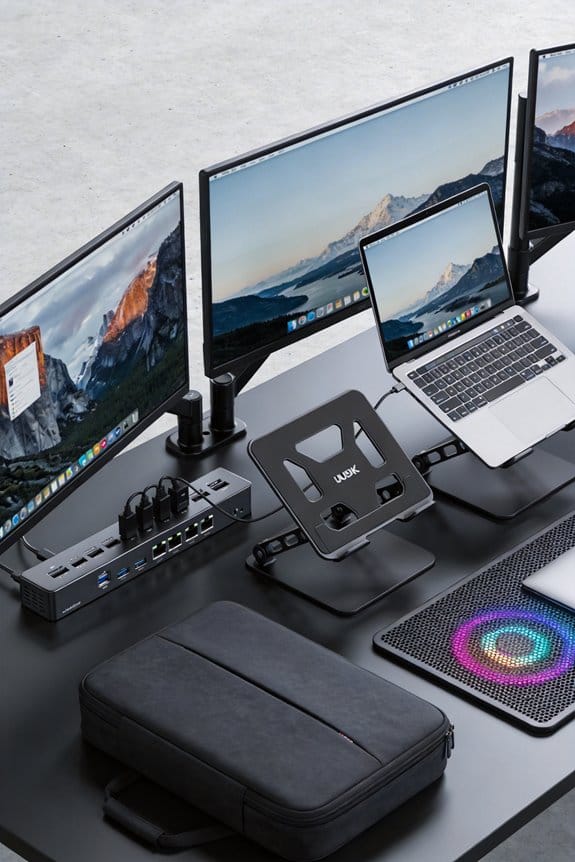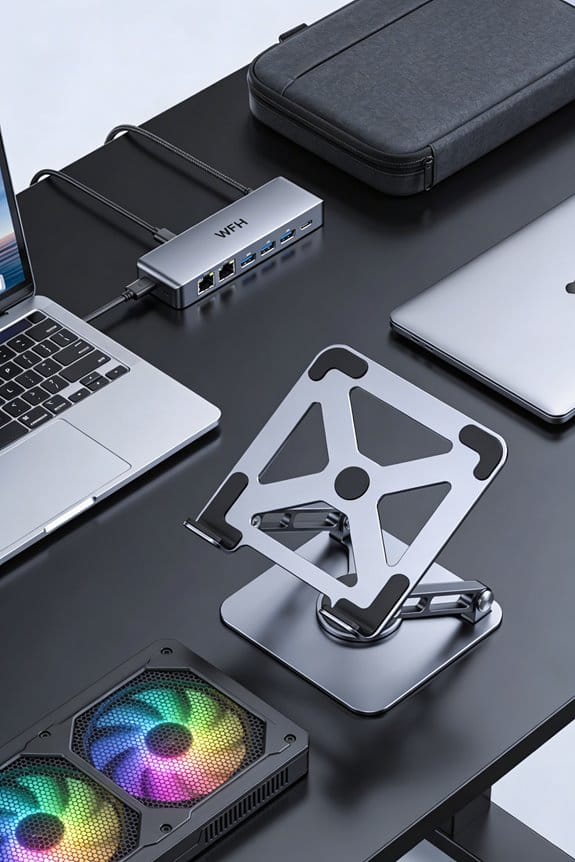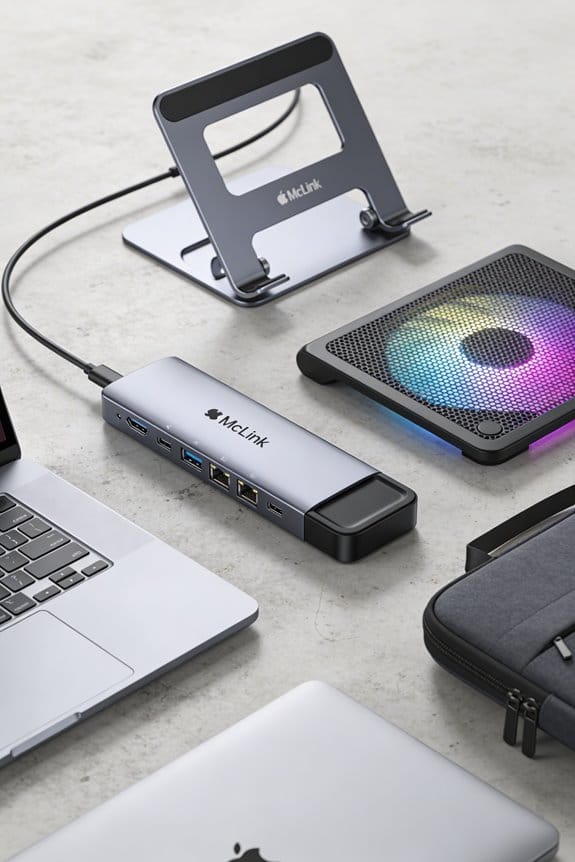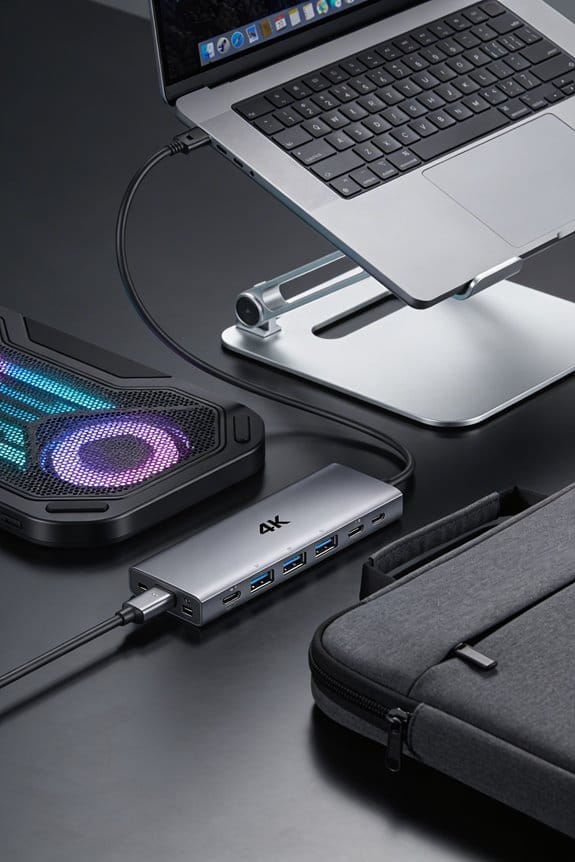

We’ll break down how a single USB‑C cable can power a dock, laptop, monitors, and peripherals by negotiating voltage and current on the fly. The dock’s PD controller talks to the laptop, settles on a profile—often 20 V × 5 A for up to 100 W—and then splits that power, sending most to the laptop and the rest to USB‑C hubs, HDMI, or Ethernet. Dynamic profiles let the system drop to 15 V or 20 W when the battery is low, while a 140 W continuous‑output dock with active cooling handles peak loads without overheating. If you keep going, you’ll see how firmware tweaks and PD 3.1’s 240 W ceiling keep things future‑proof.
Key Takeaways
- A USB‑C cable carries Power Delivery (PD) messages that negotiate voltage and current between laptop and dock, enabling up to 100 W (20 V × 5 A) or more.
- The dock’s firmware translates the negotiated power into separate rails for the laptop, monitors, and peripherals while maintaining headroom for peak demand.
- Dynamic PD profiles adjust output (e.g., 20 W → 100 W) based on battery state and workload, preventing waste and heat buildup.
- Integrated active cooling and thermal management throttle current as temperature rises, protecting components and preserving performance.
- Future‑proof docks support PD 3.1 (up to 240 W, 48 V) and provide firmware updates to adapt to evolving device power requirements.
Usb‑C Power Delivery Powering a Dock With One Cable
Ever wondered how a single USB‑C cable can power a whole dock? We’ll show you how unplugged efficiency works, letting the dock draw just enough power for the laptop and attached devices, so nothing sits idle. The cable carries up to 100 W, enough to charge a laptop at 50 W while feeding two 4 K monitors and a few USB peripherals. Silent cooling keeps the dock’s fans off, using passive heat sinks that stay quiet even under load. Our tip: choose a dock with dynamic PD negotiation, it’ll lower current to 20 W when the battery is near full, saving energy and heat. This simple setup cuts clutter, saves power, and stays cool—no extra adapters, no noisy fans.
USB‑C Power Delivery: Voltage‑Current Negotiation (20‑100 W)

How does a USB‑C cable decide how much power to send? We start by exchanging PD messages, letting the laptop say “I need 20 V at 3 A” and the dock replying with its limits. The negotiation can climb to 20 V at 5 A for up to 100 W, then the devices settle on the highest common level. In most cases the firmware follows the spec, but edge case firmware quirks sometimes lock the voltage at 15 V, forcing a lower current and slower charge. We recommend checking the dock’s firmware version and updating it if you see that behavior. A clean handshake means the laptop draws just enough power, no waste, no overheating.
Dynamic vs. Fixed Power Profiles in Real Use

We’ve just seen how the laptop and dock negotiate voltage and current, so let’s look at what happens after that handshake. When the dock runs dynamic profiles, it watches battery level and workload, then shifts from 20 W at 80 % charge to 50 W when the screen is bright and the CPU is busy. Fixed profiles stay steady—say a constant 65 W—no matter whether you’re typing a document or rendering video. In real use, dynamic profiles save energy and keep heat low, but they can dip when many peripherals draw power, so you might see slower charging during a heavy USB‑C hub session. Fixed profiles give predictable power, which some users prefer for stability, especially with older laptops that don’t speak the newest PD language. The choice comes down to how much flexibility you need versus how much consistency you want.
Pass‑Through Power Delivery: Powering Laptop & Peripherals

So, what makes a docking station actually keep your laptop and all its gadgets alive? We rely on pass‑through power delivery, where a single wall adapter feeds the dock, then the dock splits power to the laptop and peripherals. The dock draws only what each device asks for, typically 65 W to 100 W for a laptop, leaving 10 W‑20 W for monitors, drives, and phones. We keep misuse prevention in mind by using built‑in negotiation, so a faulty mouse won’t drain the laptop. This also helps cable longevity; the USB‑C cable sees stable current, less heat, and fewer wear spikes. In short, one cable, smart allocation, and safe limits keep everything alive without extra adapters.
How Pass‑Through Allocates Power Between Laptop and Devices

After explaining how the dock pulls power from a wall adapter, let’s look at how it splits that power between the laptop and the attached gear. We start with the PD controller, which reads the laptop’s request—often 65 W for charging and 15 W for the dock’s own circuits. The remaining 20 W can be shared with peripherals like a USB‑C hub, a monitor, or a USB‑A charger for a phone. When a device asks for more, the controller throttles the laptop’s share, keeping the total under the wall adapter’s rating, say 100 W. This dynamic split protects haptic‑feedback modules and ensures color‑calibration tools get steady voltage, so they stay accurate without brown‑outs.
USB‑C Power Delivery Meets Thunderbolt 3/4: 100 W & 40 Gbps
Ever wonder how a single USB‑C cable can juggle both power and data? We’ll explain how USB‑C Power Delivery (PD) teams up with Thunderbolt 3/4 to give us 100 W of power and 40 Gbps of bandwidth. The cable’s PD controller runs a dynamic negotiation with the laptop, asking for just the right voltage and current, while Thunderbolt handles the data lanes for monitors, storage, and networking. This dynamic negotiation lets the system do power optimization, scaling down to 20 W when the battery is near full, and ramping up to 100 W when it’s low. The result is one sleek connection that charges fast, drives four‑K displays, and moves files in a flash, all without extra adapters.
Charging Speed: 100 W vs. 45 W Laptop Adapters
A 100 W adapter can charge a laptop roughly twice as fast as a 45 W one, especially when the battery is low. We’ll see a 0‑to‑50 % jump in about 30 minutes versus an hour with the smaller charger. The higher wattage also means the laptop can keep up with a heavy monitor setup without throttling performance.
When we push more power, thermal management steps in; the device’s firmware reduces current as temperature rises, protecting components. That’s why a 100 W dock often includes a larger heat sink and smarter fan curves. It also helps battery longevity, because the charger can taper off gently when the battery nears full, avoiding constant high‑current stress.
In practice, we recommend the 100 W option for power users who need quick top‑ups and multiple peripherals, while the 45 W adapter is fine for light tasks and occasional charging. Use the higher‑wattage dock when you want speed without sacrificing battery health.
Choosing a Dock: Rating, Pass‑Through & Compatibility
So, what should we look for when picking a dock? We start with the rating: a 100 W pass‑through is ideal for most laptops, but if we run a 140 W model we need a higher‑rated dock. Next, check the pass‑through capacity; the dock should supply enough power to the laptop while still feeding peripherals like a monitor or external SSD. Compatibility is the third pillar – verify that the dock supports our laptop’s USB‑C PD profile and that it works with the OS version we use. We ignore any irrelevant topic that doesn’t affect power, and we don’t waste space on a stray accessory that adds cost without benefit. In short, choose a well‑rated, high‑pass‑through, fully compatible dock.
PD Troubleshooting: Drops, Over‑Current & Firmware
How do we spot a PD hiccup before it ruins a work session? We watch for sudden drops in charging speed, flickering displays, or a laptop that suddenly pauses. A quick check of the dock’s LED status often shows a warning blink, and the system log will flag a PD error. If the current spikes above the rated 100 W, the dock may cut power to protect itself, so we keep an eye on the wattage readout in the OS power settings.
When drops happen, we first reset the connection by unplugging and re‑plugging the USB‑C cable, then verify the charger supplies the correct voltage, 20 V 5 A for 100 W. If the issue persists, we update the dock’s firmware—firmware reliability is key because a buggy version can mis‑read dynamic negotiation signals, causing over‑current shutdowns. Finally, we test with a known‑good cable; a faulty cable can mimic over‑current faults and break the negotiation loop.
Future‑Proofing USB‑C Power Delivery: 3.1, 240 W & New Standards
Ever wondered how we can keep our workstations ready for the next wave of USB‑C power? We’re looking at PD 3.1, which pushes the ceiling to 240 W, so a single cable can drive a high‑end laptop, two 4K monitors, and a fast‑charging phone all at once. The trick is to pick a dock that handles the new voltage steps—up to 48 V—while still supporting older 20 V/5 A profiles, otherwise we’ll hit compatibility gaps and see devices drop out. We also watch for thermal throttling; a well‑designed hub spreads heat with copper heat sinks and active cooling, keeping performance steady. In practice, we recommend a dock rated for at least 140 W continuous output, with a 240 W peak mode, and a firmware that auto‑adjusts power on the fly. This gives us headroom for future devices without over‑engineering today.
Frequently Asked Questions
Will a Dock’s Usb‑C Port Support Charging a Laptop While Also Powering a 4K Monitor?
We can confirm it works—our dock’s USB‑C port handles power negotiation and docking etiquette, delivering enough wattage to charge the laptop while driving a 4K monitor simultaneously.
Do All Thunderbolt 4 Docks Automatically Provide 100 W Power, or Does It Depend on the Laptop?
We’ll tell you that Thunderbolt 4 docks don’t always push 100 W automatically; they deliver Small power based on the laptop’s PD profile, Data transfer needs, and Future proofing considerations, while Firmware impact can adjust those limits.
Can a Pass‑Through Dock Supply Power to a Usb‑C Power Bank While Charging the Laptop?
We can power the laptop while the dock’s pass‑through supplies a USB‑C power bank, thanks to smart power negotiation and careful cable routing that allocate enough wattage for both devices simultaneously.
What Happens if a Dock’s Firmware Is Outdated—Does It Affect Power Negotiation?
Picture a rotary‑phone era dock: if its firmware’s outdated, power negotiation can stall or mis‑read capacities, causing reduced charging speeds or even connection failures, so updating the firmware’s essential.
Is a 240 W Usb‑Pd 3.1 Charger Backward Compatible With 100 W‑Only Docks?
Yes, a 240 W USB‑PD 3.1 charger works with 100 W‑only docks; it’ll negotiate down to 100 W, still handling networking basics and display protocols without issue.